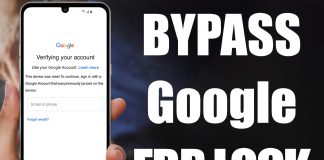
Do you have a Motorola phone with a Google FRP lock that you want removed? You’re in the right place. We provide a service that can permanently remove the FRP lock from your Motorola phone. All you need is a Windows PC, a stable internet connection, and a data cable. Simply place an order with us, and one of our professional technicians will connect to your device remotely and remove the FRP lock.

This service only bypasses the Google verification (FRP) screen and does not remove network or carrier locks. If you need to unlock your phone for use with other carriers, please check our other unlocking services. This service supports all Motorola phone models, including popular devices such as Moto Edge 70 Fusion+, Edge 70 Fusion, G77, G67, G17 Power, G17, Razr Fold, Signature, X50 Ultra, Edge 50 Ultra, Edge 50 Fusion, Edge 50 Pro, G64, G04s, G Power (2024), G (2024), G (2026), G Play (2026), Pad 60 Neo, G06 Power, G06, G86 Power, G86, G56, Edge 60, Pad 60 Pro, Edge 60 Stylus, Edge 60 Pro, Razr 60 Ultra, Razr Ultra 2025, Razr 60, Razr 50 Ultra, Razr 50, Razr 40 Ultra, Edge (2025), Edge 60 Neo, G Power 5G (2026), G Stylus 5G (2024), G52, G22, Edge+ 5G UW (2022), Edge 30 Pro, G Stylus (2022), Edge X30, Edge S30, G200 5G, G Power, G Stylus, G Play, G Pure, G Fast, G7, G7 Play, G7 Power, G7 Plus, G8, G8 Play, G8 Power, G9, G9 Play, G9 Power, G10, G20, G30, G31, G41, G50, G51, G60, G71, G82, G84, Edge, Edge 20, Edge 30, Edge 40, and 100+ other models.
Unlock your FRP Locked Motorola Now
Tutorial for Removing Google Account or Factory Reset Protection (FRP) from A Motorola Handset
Did you forget the PIN or password on your device? The first step is to perform a factory reset, which will remove the screen lock. You can follow the standard factory reset instructions for your device.
After the reset, you may see a message such as: “This phone was reset. Sign in with the previously synced Google account to continue.”
If this message appears, it means the Google FRP (Factory Reset Protection) is active, and you will need our service to bypass the Google verification.
Our certified technicians can connect to your Motorola phone remotely through your computer using secure remote desktop software. Here’s what to expect:
- The process usually takes 5–10 minutes after the connection is established
- Your data and photos may be erased, so please back them up beforehand
- This service only removes the Google verification (FRP) lock
- For network/carrier unlocks, please visit: https://store.unlockboot.com/frp-unlock-service/?service=5
Requirements:
- Windows PC (7/8/10/11)
- USB Redirector program – Download link
- Your Motorola device’s IMEI number
- USB cable to connect your phone to the computer
Steps to Remove the Google Account (FRP) from Motorola Phones
1 Go to our Motorola FRP unlocking page and choose the Moto FRP option: https://store.unlockboot.com/frp-unlock-service/?service=5
2 Enter your device’s IMEI number and click ‘Unlock Now.’ If you can’t locate the IMEI, just enter 0000.
3 Proceed to checkout and complete your payment. After your order is placed, you will receive an email with detailed instructions—please follow them carefully.
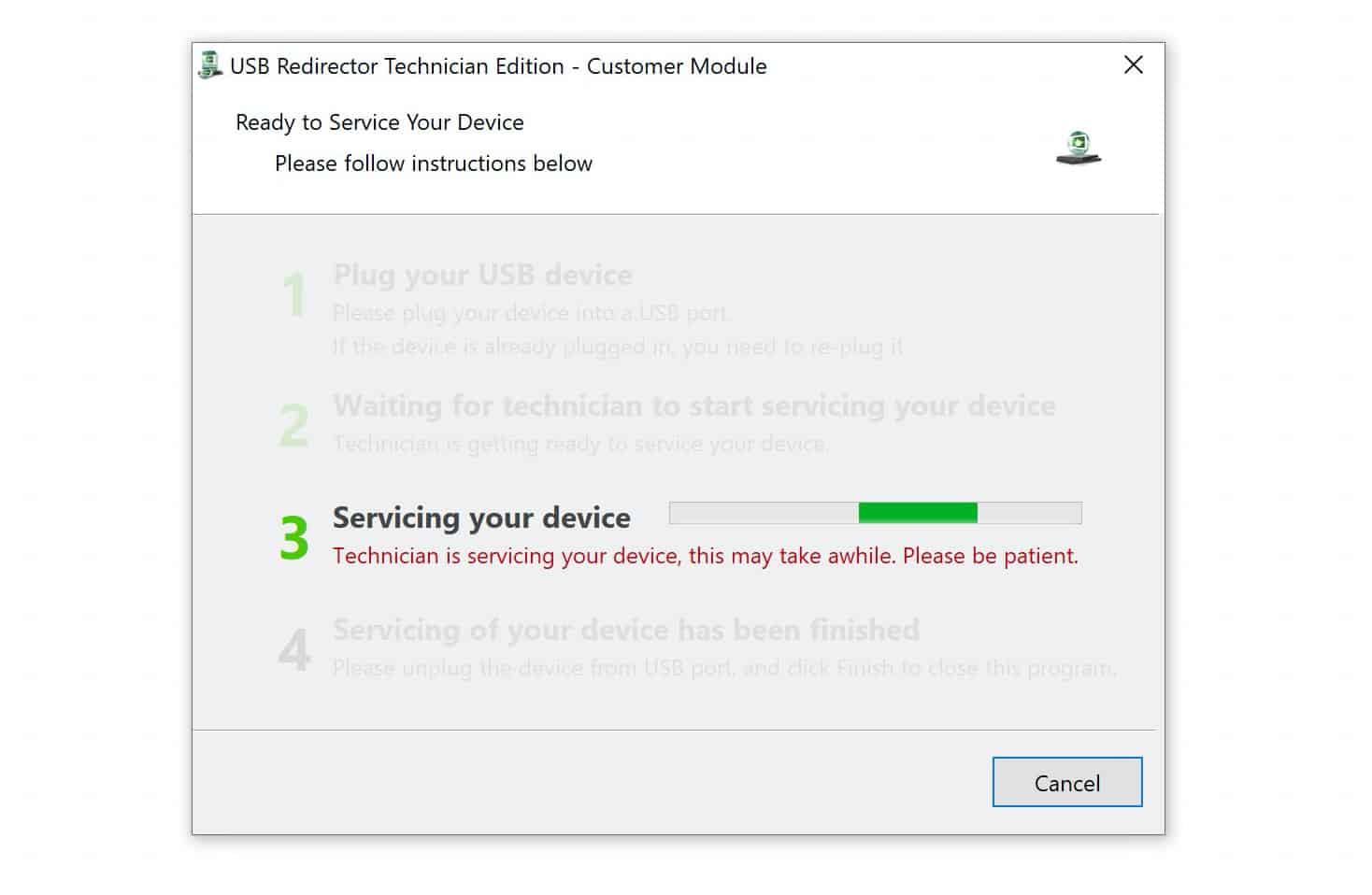
4 Once everything is ready, one of our technicians will begin the FRP removal process on your device. If you need assistance, you can contact us via Facebook or live chat: https://www.unlockboot.com/chat/
We recommend scheduling a session with one of our technicians. They are available Monday through Saturday, from 8:00 AM to 8:00 PM (EST).
Fix your Google Locked MOTO Now
Once the technician connects to your phone, the process usually takes about 5–10 minutes to complete.
Is It Safe to Use UnlockBoot’s Service?
UnlockBoot’s service is one of the safest solutions available. It does not require complicated software, rooting, or risky procedures. The company has built a strong reputation for reliability and professional support.
With UnlockBoot, you also get:
- Experienced technicians with years of expertise and safe unlocking procedures
- Certified specialists who can remove FRP and Google locks without damaging the device
- Access to the latest available unlocking methods
Motorola Models We Support
- All Motorola smartphones running Android OS
- Most Motorola tablets
The best part is that the service includes a full refund option. If the unlock cannot be completed, you can request your money back.
Conclusion
After placing your order, make sure to enter your details correctly. Then wait for the email with the detailed instructions, which may take a short time to arrive. Once you receive it, choose a convenient time slot to connect with an UnlockBoot technician.
Within 5–10 minutes, the technician will bypass the Google verification screen. Your device will be ready to use again—without the Google Lock screen.
If you encounter any issues during the process, feel free to contact us and we’ll be happy to assist.