We all know the fact that iPhones are pretty expensive and falling victim to a fraud during the purchase can be devastating for anyone. However, there are plenty of ways through which you can check whether the iPhone is new, refurbished, personalized or replaced and we thought to jot them down today in this article.
When you buy an iPhone from the market or a third party, you cannot simply guess whether it’s new or not just by looking at it. In order to know about your iPhone, you should always head to the “Settings”. The About section in the Settings of the iPhone contains all the information you need, it has IME numbers, information of software version and the storage of the phone too. There is another number there which is something like “MG4C2MZ/A” and this is exactly what you need for the identification of your iPhone.
This number is basically the model identifier, with it you can easily identify the status of your iPhone whether it is new, refurbished, replaced or personalized.
Steps to Know if your iPhone is Is Refurbished or Not
Here are the steps you need to follow;
- Go to the “Settings” of your iPhone.
- Tap on the option that says “General > About”.
- Keep scrolling and you will see a model number.
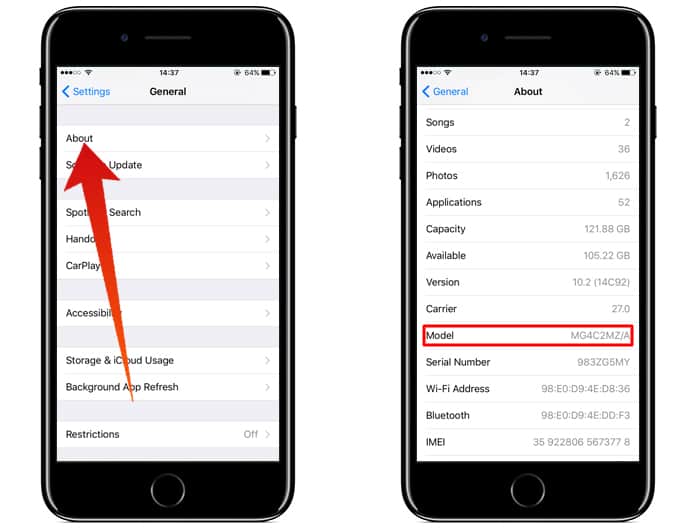
The first letter of the model number is the thing that needs your attention.
- If your model number starts from an “F” like if its “FQCL2LL/A” then it means that your iPhone is refurbished.
- If it starts with an “M” like if its “MG4C2MZ/A” then it means that your iPhone is totally new and it is bought directly from the Apple store.
- If the model number starts with an “N” such as “NQCL2LL/A” then it means that your iPhone is replaced and it is replaced due to a problem from the Apple store of the Apple Authorized Service Center.
Read Also: Things to Check Before Buying a Used iPhone
How to Identify A Personalized Phone
If your model number starts with a “P” like if its “PQCL2LL/A” then it means that your iPhone is personalized.
This is the way you can check the status of your iPhone.
We hope this article was helpful for you. Please share your thoughts in the comments section below.