There are a lot of people out there who happen to be using iPhone devices without actually knowing all of the configurations of their device. It is important to know about a device before you go ahead and buy it. If you’ve been wondering about how many GB is your iPhone, then you’ve come to the right place!

#1: Find Out How Many GB your iPhone is from Settings – About
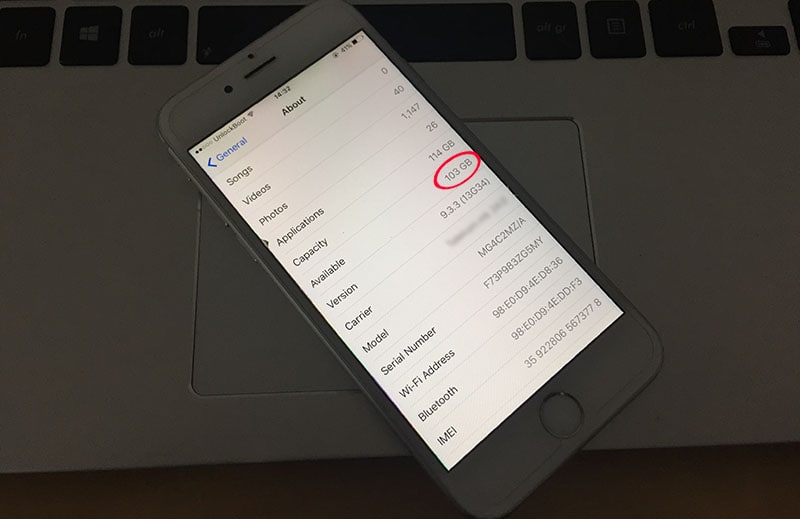
This is the easiest method to find out how many GB your iPhone is. Follow the steps to do that directly from your iPhone or iPad:
- Start with going into ‘Settings’ of your iPhone. It is an icon located on your home screen so it should be easy for you to find.
- Go to ‘General’ setting and from there select ‘About’.
- Information about your iPhone should be visible to you.
- You can get to know about the GB present in your iPhone if you look under the ‘Capacity’ section. The ‘Available’ section will let you know about the free space you have in your device.
#2: Finding how many GB is your iPhone Using iTunes
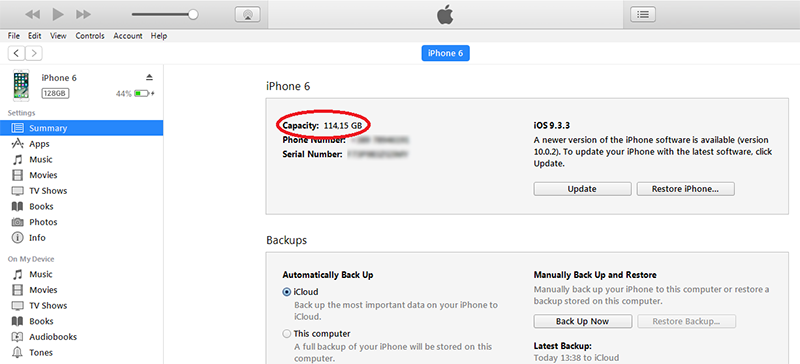
To find out how many GB your iPhone or iPad is using the iTunes method, follow the steps below:
- Connect your device to the Computer and open iTunes.
- Click on the Summary tab.
- Now you will be able to see the iPhone Capacity in GB.
Please note that if you have a Mac, you can check your iPhone’s storage by connecting it to your Mac, opening Finder, selecting your iPhone under Locations, and viewing the total capacity and available space in the General tab—no iTunes needed.
#3: Check iPhone Storage by IMEI Code using IMEI Checker
The storage size on iPhone can be checked by imei code. To do that, follow the steps below:
- First you will need to find the imei code of the device.
- Now you need to visit the imei checker page.
- Enter your imei code and hit enter.
- The app will show you how many GB your iPhone is.
Buying Guide Tip:
Since iPhone storage can’t be upgraded later, choose wisely:
| Storage Size | Best For |
|---|---|
| 128GB | Minimum option for casual use (calls, messages, light apps) |
| 256GB | Best for most people—photos, videos, apps, and backups |
| 512GB / 1TB | Pro users, especially those shooting 4K / ProRes video |
So, there you have it! A simple ways to know about the amount of GB present in your iPhone.