Connecting Mac to a Bluetooth speaker will enable you to enjoy audio wirelessly. The only pre-requisite for doing so is that the Bluetooth on your Mac should be active, and the Speaker should be within good range. With these two requirements fulfilled, MacOS can connect to any Bluetooth speaker, portable or stereo.
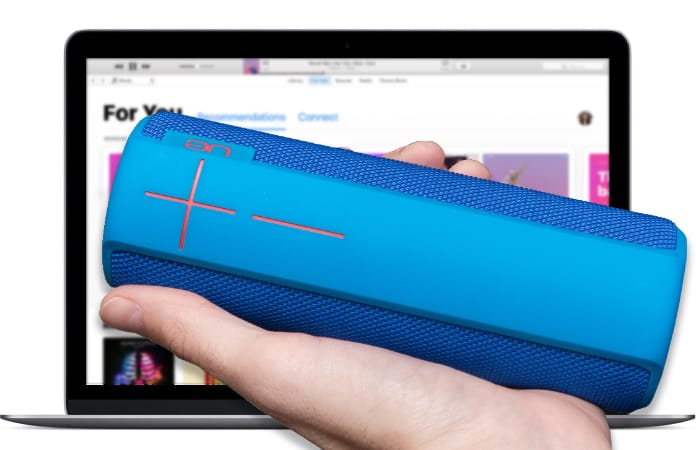
If you haven’t synced a Mac with Bluetooth before, or you’re entirely new to connecting various devices with Bluetooth, the guide below should assist you with the entire process of connecting a Bluetooth speaker with a Mac.
Step for Connecting Bluetooth Speaker with Mac
Step 1: Activate the Bluetooth speaker, and put it in ‘discovery’ mode (usually a power and/or Bluetooth icon button) is relevant.
Step 2: Pull down “Apple menu” () and select System Preferences.
Step 3: Choose the preference panel for Bluetooth.
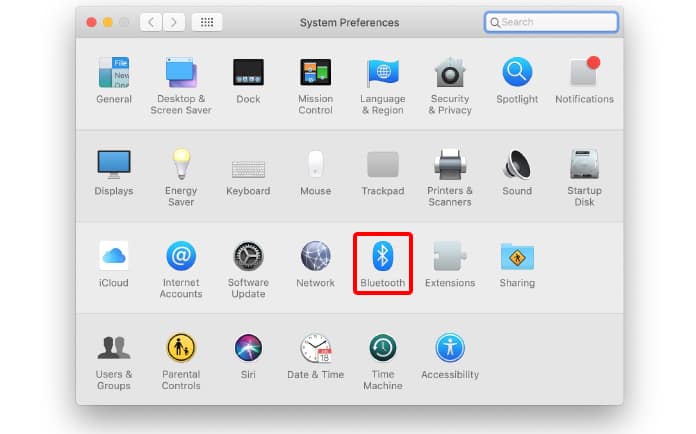
Step 4: Activate Bluetooth if it isn’t already activated. When the Bluetooth speaker appears in the list of devices, choose “Connect’ beside it.

Step 5: Wait a while, and the Bluetooth speaker should be able to form a connection. You should also see a small text saying “Connected”.
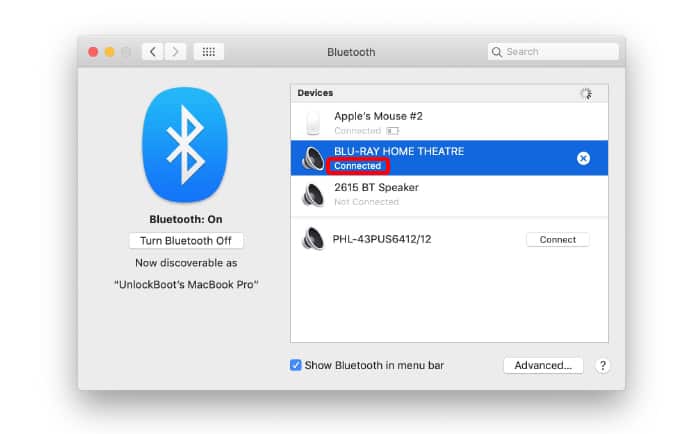
Once connected, adjust the volume on Mac and speaker so they’re easily heard, and conduct a sound test. Open iTunes and play any track. Doing so will allow you to hear the sound from Bluetooth speakers.
Steps for Disconnecting Bluetooth Speakers from MacOS
The most straightforward way is to switch off the Bluetooth speaker. However, when the speaker turns on again, it will make an attempt to pair itself with the Mac.
If you don’t want to switch off the speaker, or want to use the Bluetooth speaker with another iDevice, you have to utilize the Bluetooth control panel or menu bar to remove and disconnect the device from the Mac computer.
- Pull down “Bluetooth menu bar” and choose Bluetooth speaker.
- Select “Disconnect” from the submenu that shows up. It’s beside the Bluetooth speaker in the menu that is dropdown.
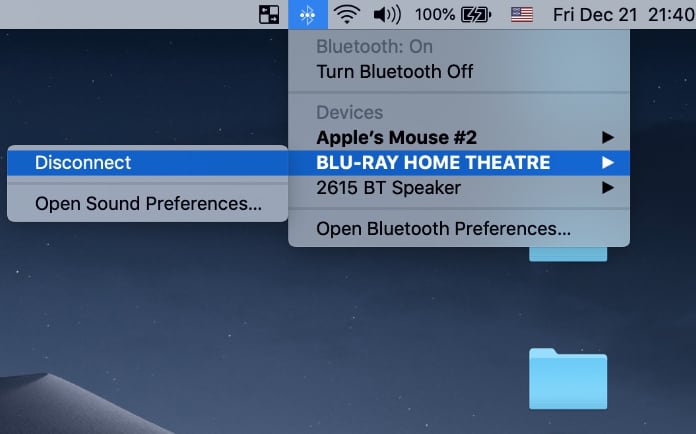
Alternatively, you can switch off the Mac’s Bluetooth to disconnect the Bluetooth speaker, though it’s not a practical thing to do if you’re using a wireless mouse, keyboard, or another Mac-supported Bluetooth accessory.
Steps for Removing a Bluetooth Speaker from Mac Completely
You can also directly use the Mac PC to remove the Bluetooth speaker, so that it’s no longer found or paired by the computer when it attempts to discover a Bluetooth device:
- Pull down the Apple menu and select “System Preferences”.
- Choose the preference panel for “Bluetooth”.
- Click the “x” button beside the name of the speaker.
- Confirm that you wish to remove the connected device from the Mac.
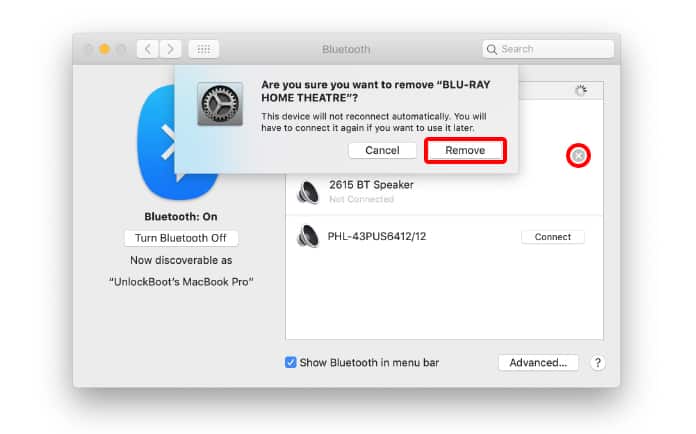
After the Bluetooth speaker is removed and disconnected, the Bluetooth speaker should be added again using the same steps that you used to connect it with the Mac. Starting today, nothing can stop you from enjoying the world of Bluetooth music!