
Although Apple Safari is an internet browser, there are ways an Apple user can modify their experience on Safari. Social network sharing, interfacing web apps and login interfaces with a common password, security extensions, Skype extension etc. are all available tools Safari Browser on Apple Macintosh computer. Installing a Safari extension is almost automated and they are automatically placed inside the browser.

However, one might feel that some of their extensions are running out of their active purpose and a deletion may be necessary. Having a lot of obsolete plugins and extensions can slow down Safari or even the whole Mac as well, so we would like to show you how to remove Safari extensions on Mac.
How to Uninstall Safari Extensions on Mac
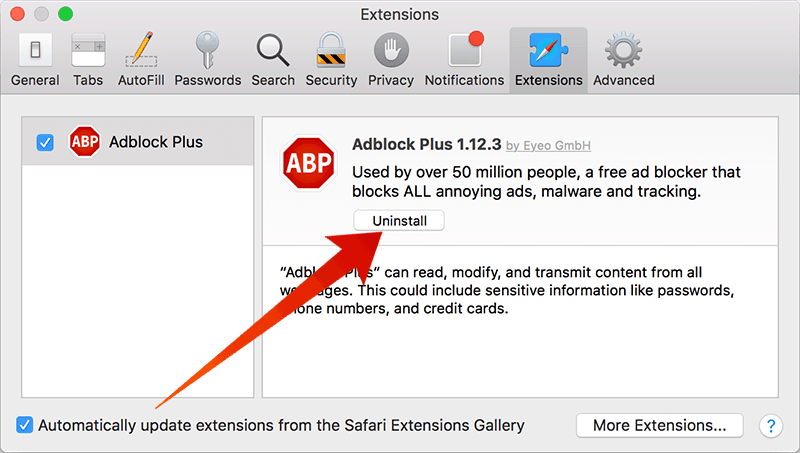
Go to the Extensions tab and remove Safari extensions on Mac
To uninstall the extensions you have previously installed in your Safari browser on Mac, proceed as following. However, we assume that your Macintosh is running all the latest software including the Mac OS itself.
- The Safari app is put in the dock by default. If you haven’t removed it, it should still be in the dock. Launch the app by clicking the Safari icon on the dock on your Macintosh computer.
- From the Safari menu on the top bar, find Preferences and wait for the dialogue box to open.
- Open the Extensions tab marked with a blue-ish Safari-like puzzle icon titled ‘Extensions’ underneath. Inside the dialogue box, a list would populate with the names of all the installed extensions on your Safari browser.
- There should be a check box with that says ‘enable’. Uncheck the box if you don’t want to uninstall the extension but want to keep it for future reference or purpose. Check the box if you want to turn the extension on.
- If you want to permanently get rid of the installed plugin or extension on your Apple Safari browser, then click the uninstall button underneath the extension’s name inside Extensions tab.
- A dialogue box prompt should appear on screen asking the user whether they really want to remove the extension permanently from their computer. Confirm the action by clicking on the blue ‘uninstall’ button.
If you want to uninstall more than one extension, scroll through the extension list and find the entries you want to get rid of and continue the procedure.
Remove Safari Extensions Directly from the Folder
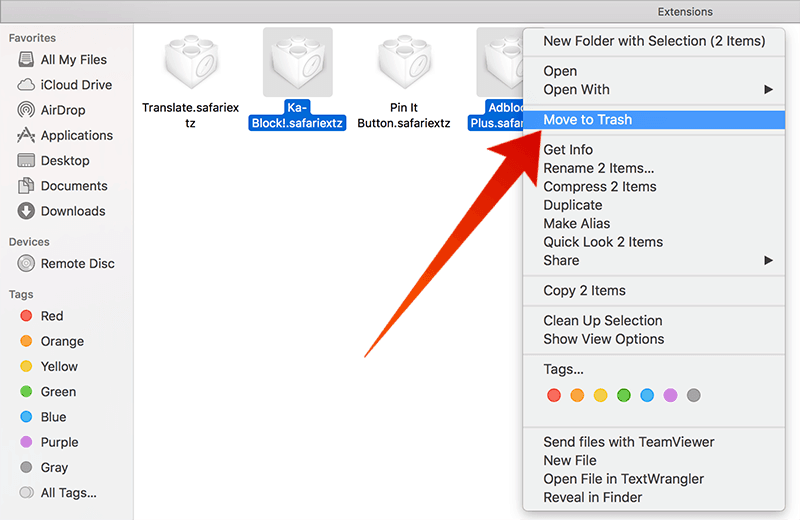
Remove Safari extensions on Mac by moving them to trash
If Safari browser has crashed and won’t open, then you might do the same operation without actually opening Safari.
- Either open Finder or use the Go To folder to launch this following directory on your Mac OS ~/Library/Safari/Extensions/
- The extensions directory for Safari browser will open in your Finder window.
- Scroll through the files inside this folder. The extension you plan to delete should be in this list.
- Delete the file and restart Safari browser for the changes to take effect.
How to Remove Safari Plugins on Mac
To remove plugins, one has to follow the manual method. Visit this directory /Library/Internet Plug-ins/ and manually delete the plugins you want from your system.
Conclusion: Deleting an extension or plugin in Macintosh isn’t very difficult. It might take some patience, but it’s doable.