Are you aware that website passwords can be shared on iOS 12 using AirDrop? Not only the process is quick but it is extremely secure. This article is essentially a hands-on tutorial that explains how the password management feature works. Essentially, managing passwords has become a convenience, and what better way to demonstrate this than sharing passwords using AirDrop on iOS 12 on an iPhone?
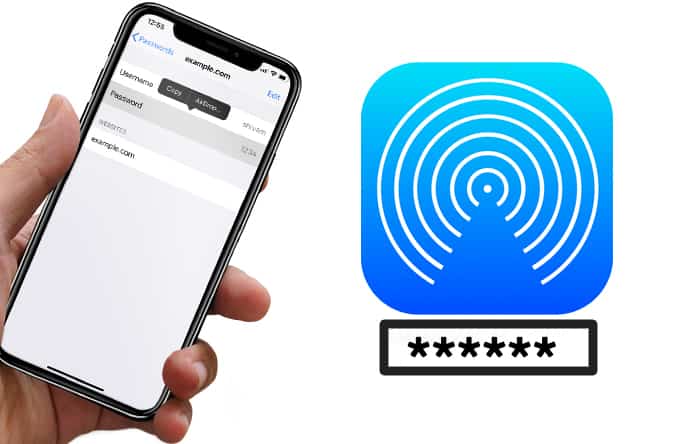
To provide extra protection to data, several users prefer using a secure password. However, you’d be happy to know that a more functional password management feature has been introduced by Apple in the newest iOS version.
Considering how quick, reliable and secure AirDrop is, you should have no hesitation in sharing the secret characters/words/numerical using the popular file transfer system.
Steps to Share Website Passwords in iOS 12 Using AirDrop
Please note that saved website passwords can be shared between macOS Mojave devices and iOS 12, so ensure you’re using compatible devices.
- Open “Settings” on your iPad or iPhone.
- Next, tap “Passwords and Accounts” then “Website & App Passwords.”
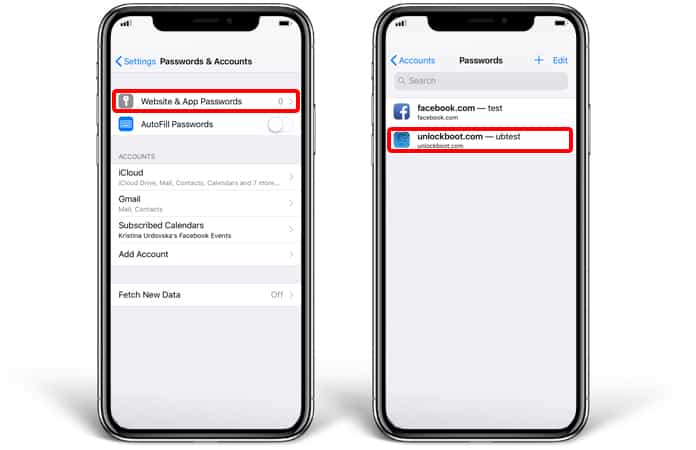
Then enter the iPhone passcode to see the passwords that are saved. Note that iOS 12 allows you to instantly access all your saved passwords through Siri. All you have to do is launch Siri and say the following, “Hey Siri, show my passwords.” Then get your identity authenticated to see your saved passwords.
- “Choose a login” next.
- Next, tap and hold the “password field” and select “AirDrop.”
- Select the device to share the saved password.
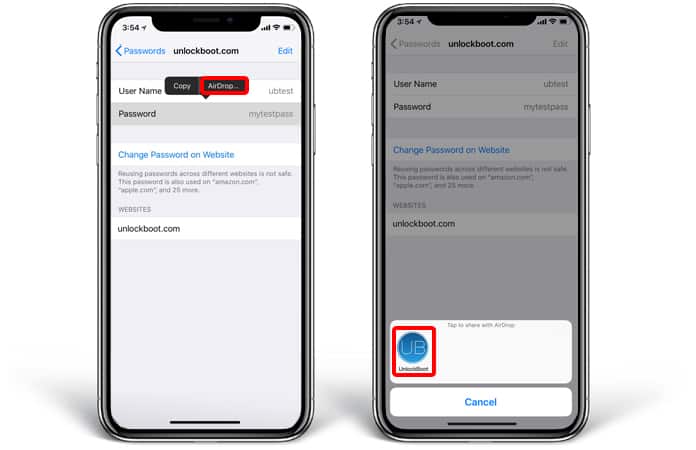
And that’s all you need to do in order to share website passwords with AirDrop. The password will now be sent following standard procedure. The recipient then has to tap on “Accept” in the prompt to receive it.
Due to the introduction of this new password management API, it’s more convenient than ever to deal with secret keys. However, to ensure there is an extra safeguard, we recommend creating strong passwords that consist of upper case, lowercase letters, numeric, special characters, etc. It offers a better way to access, keep and build the code words.
Another thing to know that it will function well not only in Safari but also in third-party applications. Plus, all the code words will be stored in the iCloud keychain and synced across your iOS devices so you can manage and access them effortlessly at any time and place.
Also, the availability of “Password Autofill Extension” when it comes to using third-party applications is further augmenting the password management feature. Therefore, you can now utilize password management apps to divert automatically filled password in other applications.
What are your thoughts? Will you be using this feature? Did you get a chance to try iOS 12? Feel free to leave comments.