There are multiple ways to sort iPhone contacts by first name and keep them synced right. One of the tricks most users leverage is modifying the order of pecking – sorting iPhone contacts by first name makes finding people a lot easier. In default state, contacts remain segregated by the person’s last name. But iPhone and Mac users may not be aware that it’s quite simple to rotate order and sort contacts by first name. Find out how to do that on iOS and Mac below.
Steps to Sort iPhone Contacts by First Name
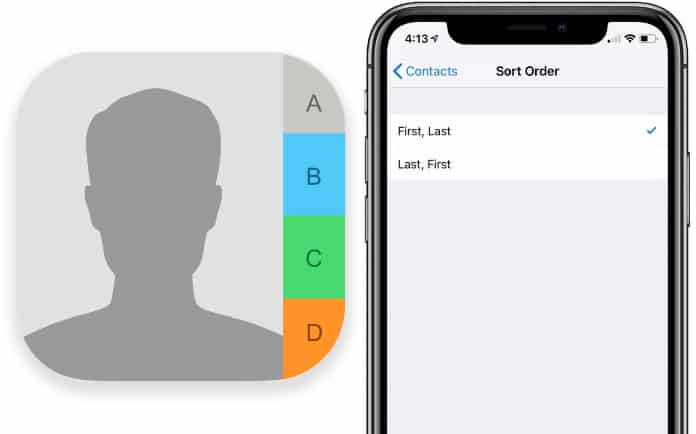
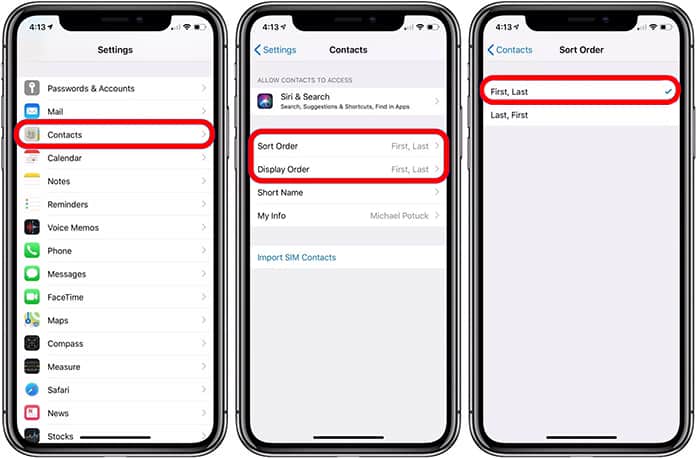
Step 1: Open the “Settings” application on your iDevice and tap “Contacts.”
Step 2: Next, tap “Sort Order.”
Step 3: It’ll now give you two options: First, Last and Last, First. Choose the first one as you intend to sort iPhone contacts by first name. Next, go to the Contacts app to review the short order. If you did everything right, it will have the first name highlighted.
How to Sort Contacts by First Name on Mac
Doing the same on Mac isn’t hard either. You just need to take the following steps.
- On your Mac, launch the application for “Contacts.”
- Next, click on the menu for Contacts and select “Preferences.”
- Now, click “Sort by” in the dropdown tab and select the contact’s “First Name.”
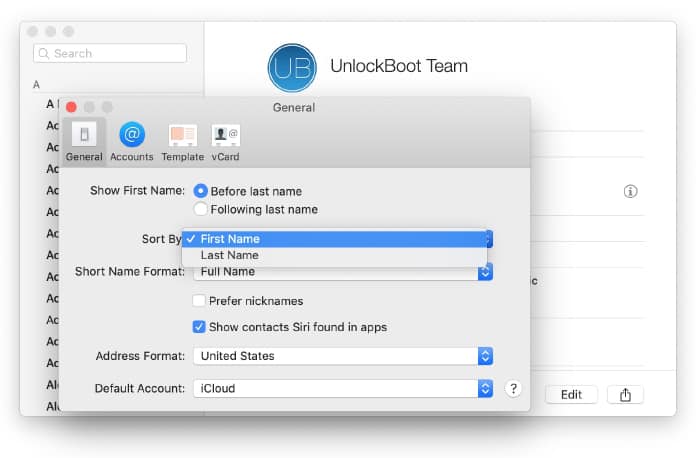
After these steps, the change will be initiated on an immediate basis. Users can see the new format by opening the Contacts app.
See Also: How to Remove Duplicate Contacts from iPhone
Bottom line
If there are several contacts in your address book, making manual changes would be a hassle. That’s why Unlockboot recommends using a third-party contact manager to identify duplicates and eliminate them before any damage is done. Additionally, you’d be able to better organize your entire address book.
That’s it. You’ve learned how to sort iPhone contacts by first name. If you found this post helpful, feel free to share it with your friends and peers.