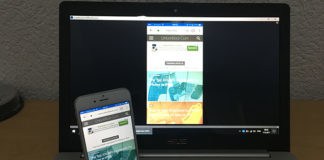
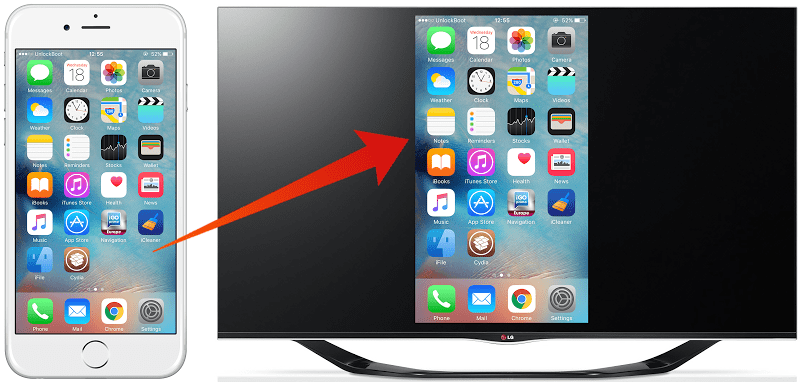
It’s not surprising that you want to connect iPhone to TV. All iDevices can be connected easily with a TV screen as well as projectors through an HDMI cable or with the assistance of a wired connector adapter. If there’s an HDMI input port in the recipient projector, display, or TV, the iPhone or iPad’s display can be mirrored to that screen.
As a result, you can watch videos and movies, do great presentations, and a lot more. The output of the video can be a maximum 1080p HDTV resolution, and both audios and videos can be transferred, mirrored from the iDevice to the TV screen. Also, if you don’t have HDMI, there is wireless AirPlay method you can use to connect iPhone to TV.
Requirements to Connect iPhone to TV or projector with HDMI
- iPod Touch, iPad or iPhone with a lightning connector port.
- HDTV, digital projector, or TV with HDMI input – target display for mirroring the screen of iOS.
- Long-length HDMI cable.
- Lightning Digital AV Adapter for iDevice.
After all the hardware is with you, the rest of the process is easy to connect iPhone to TV screen.
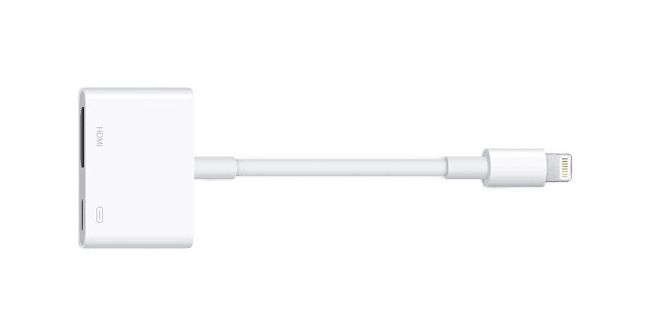
Use iPhone to HDMI Adapter to Connect iPhone to TV
Connect iPod touch, iPad or iPhone to TV, projector, or display with HDMI
- Ensure your device is switched on.
- The lightning digital AV adapter should be connected to the iDevice
- Then the HDMI cable should be connected to the Lightning AV adapter, and then the HDMI cable should also be connected with the projector, display, or TV on which you want to display the iOS screen.
- Toggle the settings on the projector or TV to the related HDMI input. This is going to be different between projectors, displays and TVs, but usually it’s the “Input” option on displays.
- When the right HDMI input is discovered, iOS is going to detect the secondary screen and start projecting the iDevice display mirrored on the TV instantly.
However, if the device is vertically oriented, large black bars will show on iOS screen (both sides). Therefore, make sure the orientation lock is switched off, so the screen can be rotated for the wider TV display. It is also helpful for apps that support horizontal format, like Safari does.
So while the less fancy way to connect iPhone to TV is to use an HDMI cable over wireless AirPlay, there are also less problems. A Mac can be connected to a TV in s similar way, which is similarly useful, but requires a different adapter than what’s needed to connect iPhone to TV.
Read Also: Best TV Remote Control Apps for iPhone
Of course, the process isn’t as fancy as using AirPlay to mirror a display wirelessly, but it works flawlessly and there’s minor setup needed, so it’s a terrific solution for those who don’t mind wires.